🔗Offline Support
The plugin is designed to work fully offline. Sessions are always saved locally first and uploaded to the server when a connection is available. You never lose a reading session due to network unavailability.
🔗How the queue works
Note: This describes the default behaviour where sessions sync immediately after each session ends. If Manual Sync Only is enabled, sessions accumulate in the queue until you trigger a sync manually.
Every validated session is written to the pending_sessions table in the local SQLite database before any network request is attempted. The session remains there until it is successfully uploaded.
flowchart TD
    A["Book closed"]
    B["Session validated"]
    C["INSERT into pending_sessions"]
    D{"Network available?"}
    E["POST to server"]
    F["200 OK - move to historical_sessions"]
    G["Error - increment retry_count"]
    H["No network - stays in queue"]

    A --> B --> C --> D
    D -->|Yes| E
    E -->|Success| F
    E -->|Failure| G
    D -->|No| H
🔗Offline book ID resolution
When you open a book without a network connection, the plugin cannot look up the BookLore book ID. In this case, the session is saved with book_id = NULL and the file fingerprint (MD5 hash) is recorded instead.
When a sync is later attempted:
flowchart TD
    A["Sync triggered"]
    B["Find sessions where book_id = NULL"]
    C["Query server for book ID by hash"]
    D{"Book found on server?"}
    E["Store book_id and upload session"]
    F["Session stays in queue until book is matched"]

    A --> B --> C --> D
    D -->|Yes| E
    D -->|No| F
🔗Batch upload
When multiple sessions are pending, the plugin uploads them in a single batch request:
POST /api/v1/reading-sessions/batch
Up to 100 sessions per batch are sent in one request. This is 10–20 times faster than individual uploads for large queues (e.g., after a week without a connection).
🔗Retry logic
Each pending session tracks a retry_count - the number of times upload has been attempted and failed. This counter is incremented on each failed attempt.
The retry count is visible when inspecting the database directly:
SELECT id, retry_count, book_id, duration_seconds FROM pending_sessions;
There is no automatic backoff or maximum retry limit - the plugin will keep retrying on every sync trigger until the session is successfully uploaded or manually cleared.
🔗Automatic sync triggers
Pending sessions are synced automatically in these situations:
| Trigger | Behaviour |
|---|---|
| Device suspend | In Automatic sync mode, session + current progress are queued and uploaded immediately only if network is already connected |
| Session end | In Automatic sync mode, sync is attempted after every valid session |
| Device resume | In Automatic sync mode, deferred background sync runs after wake only when network is already connected |
| Network connected | Immediate sync when network becomes available (if a wake sync was pending) |
| Manual Sync Now | Triggered by Tools → BookLore Sync → Sync & Cache → Sync Pending Now |
| Dispatcher action | SyncBooklorePending can be assigned to a button or gesture |
🔗WiFi confirmation prompt
BookLore Sync no longer uses a WiFi confirmation prompt setting.
- In Automatic sync mode, manual actions may enable/connect WiFi when needed (for example Sync Pending Now).
- Suspend/resume automatic background sync does not try to connect WiFi. It runs only when a network connection is already active.
- In Manual only (cache everything) mode, automatic network sync is disabled and data remains queued until you run a manual sync action.
You can tune startup timing for flaky networks in:
Tools → BookLore Sync → Sync Behavior → Networking → Sync delay after connect
This adds a configurable wait (seconds) after WiFi connect succeeds and before sync requests are sent.
🔗Post-sync WiFi handling
Post-sync WiFi handling is separate from sync-mode selection.
When a sync action enables WiFi, the plugin delegates WiFi teardown to KOReader's native network lifecycle. The KOReader setting under Action when done with Wi-Fi is respected:
- Leave on
- Turn off
- Prompt
For one-shot upload/download actions, this behavior is applied when the action had to enable WiFi:
- Sync Pending Now
- Pull current book progress
- Push current book progress
- Sync Shelves
- Re-sync All Historical
- Sync Re-matched Sessions
- Re-sync Stored Metadata
For interactive matching workflows, WiFi is enabled/connect-on-demand but intentionally left up for the flow:
- Match Unmatched Books
- Re-match All Books in Cache
- Match Historical Sessions
- Manual Matching
The post-sync action only runs when WiFi was initially off. If WiFi was already connected before the action, the plugin does not change WiFi state.
🔗Airplane mode integration
If the community AirPlane Mode plugin is active (airplanemode = true in KOReader settings), BookLore Sync does not attempt to enable WiFi.
If you enable Integrations → Airplanemode plugin → Switch sync mode based on airplane status, the plugin also overrides Sync Mode automatically:
- AirPlane Mode ON → Sync Mode set to Manual
- AirPlane Mode OFF → Sync Mode set to Automatic
When enabled, the plugin shows:
Airplanemode integration enabled. This overrides Sync Mode based on airplane status.
In that state, network actions are skipped and queued items remain pending until AirPlane Mode is disabled.
When a network action is started while AirPlane Mode is active, the plugin shows:
AirPlane Mode is enabled - network sync skipped
🔗Book deletion queue
When a book is deleted from the file manager, the plugin attempts to notify BookLore:
DELETE /api/v1/books/{id}
If the book ID is not yet known (e.g., book was never synced while online) or if the device is offline, the deletion is stored in the pending_deletions table and retried on the next sync.
SELECT id, file_path, book_id, created_at FROM pending_deletions;
Pending deletions are processed alongside pending sessions on every sync trigger.
🔗Inspecting the queue
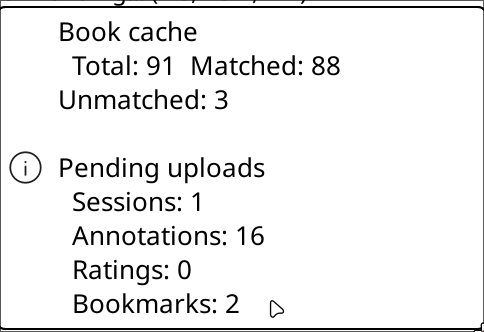
To see how many sessions are waiting:
Tools → BookLore Sync → Sync & Cache → View Pending Sessions
To view the raw data:
sqlite3 {your_koreader_installation}/settings/booklore-sync.sqlite \
  "SELECT id, book_hash, duration_seconds, retry_count, created_at FROM pending_sessions;"
🔗Clearing the queue
To discard all pending sessions:
Tools → BookLore Sync → Sync & Cache → Clear Pending
Warning: This permanently deletes all queued sessions. They will not be uploaded to BookLore. Only use this to remove test data or sessions you do not want.